
Can Excel Solve for X?

When you have a formula and you know the result you want, but need to find the input that produces it, you're essentially asking Excel to solve for x.
Contents:
Quick Answer
Yes, Excel can solve for x using a built-in tool called Goal Seek. You give it a formula cell, a target result, and the cell you want Excel to change, and it works backwards to find the value of x that makes the equation true. No algebra required.
How to Solve for X Using Goal Seek
Goal Seek is found under the Data tab. Click Data > What-If Analysis > Goal Seek.
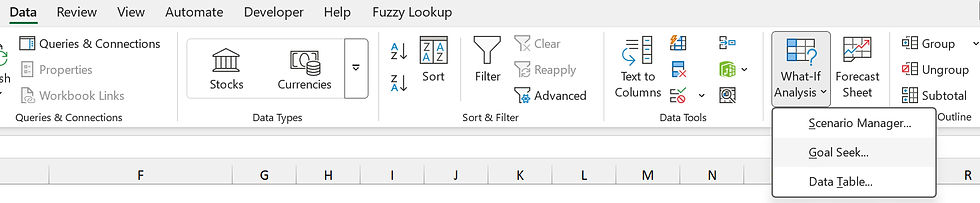
A small dialog box opens with three fields:
Set cell: the cell containing your formula (the output)
To value: the result you want
By changing cell: the cell holding x (the input you want Excel to find)
Click OK and Excel iterates through values until the formula cell hits your target.
A Practical Example
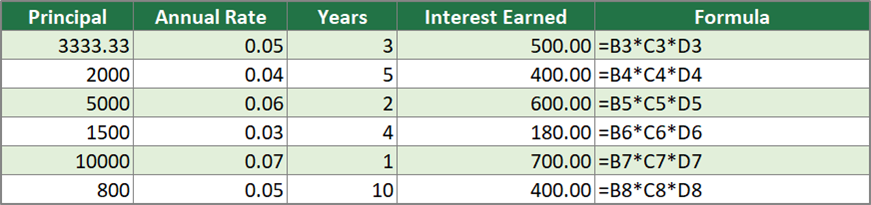
Let's say you're calculating simple interest. The formula is:
= principal * rate * timeYou put the principal in A2, the annual rate in B2, and the years in C2. Your interest formula in D2 looks like this:
= A2 * B2 * C2You know you want to earn $500 in interest. Your rate is 5% and your time is 3 years. You need to find the principal, which is x.
Open Goal Seek:
Set cell: D2
To value: 500
By changing cell: A2
Excel solves it instantly. A2 updates to 3333.33, because 3333.33 0.05 3 = 500.


So that's all there is to it. Goal Seek found x without you having to rearrange the equation manually.
Limitations of Goal Seek
Goal Seek works well for single-variable problems, but it has a few things worth knowing.
It only changes one cell at a time. If your equation has two unknowns, Goal Seek can't help directly. For multi-variable problems, look at Excel's Solver add-in instead (found under Data > Solver after enabling it in Options > Add-ins).
It uses iteration, not exact algebra. Excel tries values repeatedly until it gets close enough to the target. By default it stops after 100 iterations or when the result is within 0.001 of the goal. For most practical purposes that's fine, but be aware results may be very slightly rounded.
The changing cell must affect the formula cell. If the cell you pick as x isn't actually connected to the formula, Goal Seek will just return an error or leave the value unchanged.
For date-based calculations or more complex back-solving involving working days, the same principle applies. You can pair Goal Seek with any formula on your sheet, including the kinds of working day formulas covered elsewhere on this site.



Comments